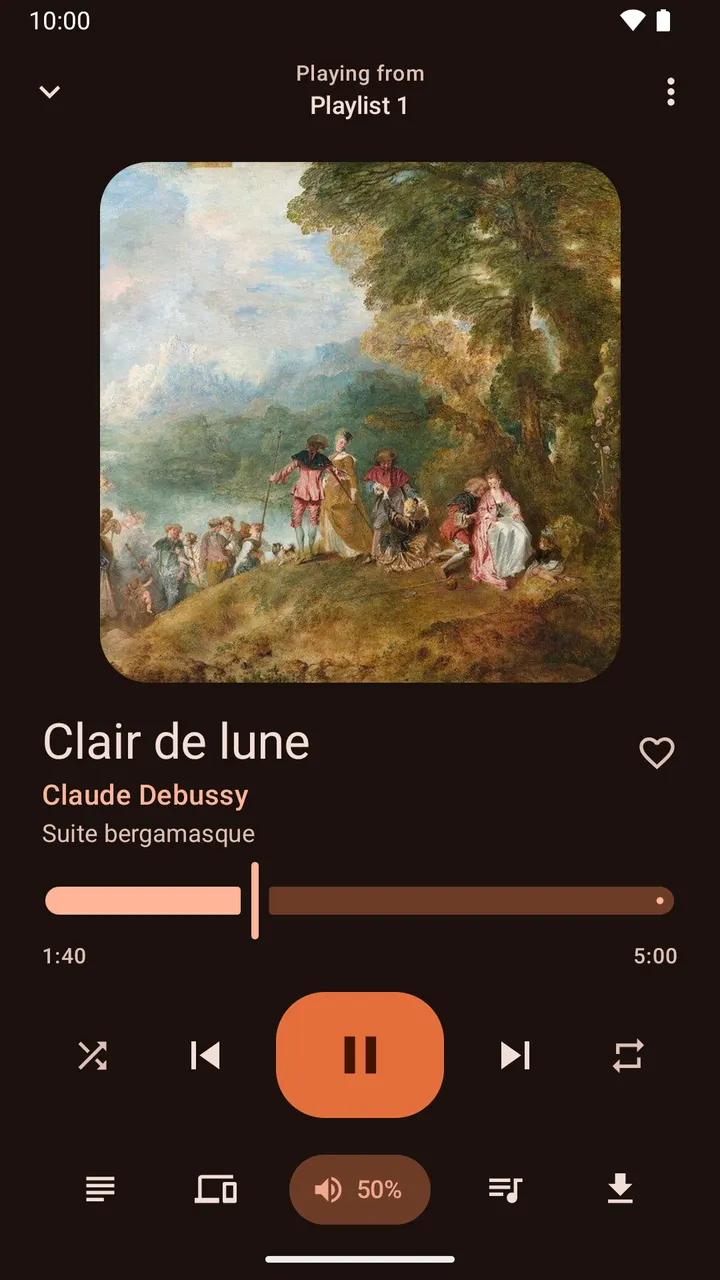
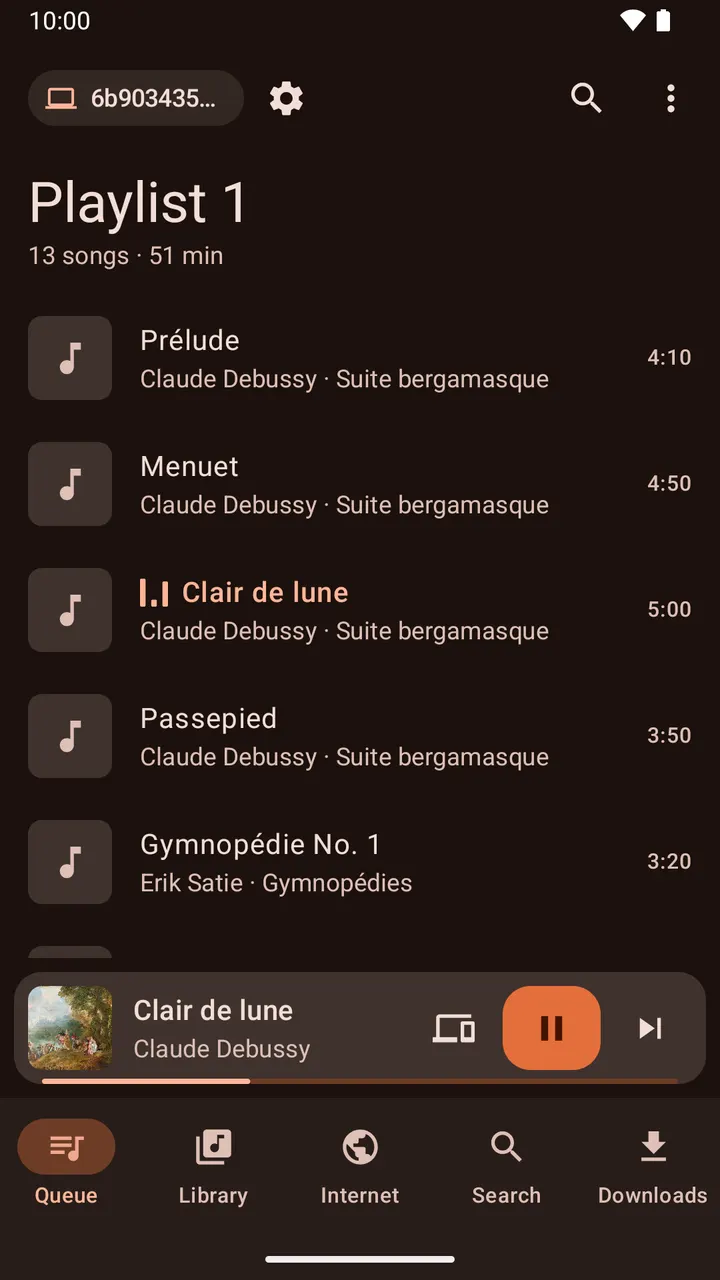
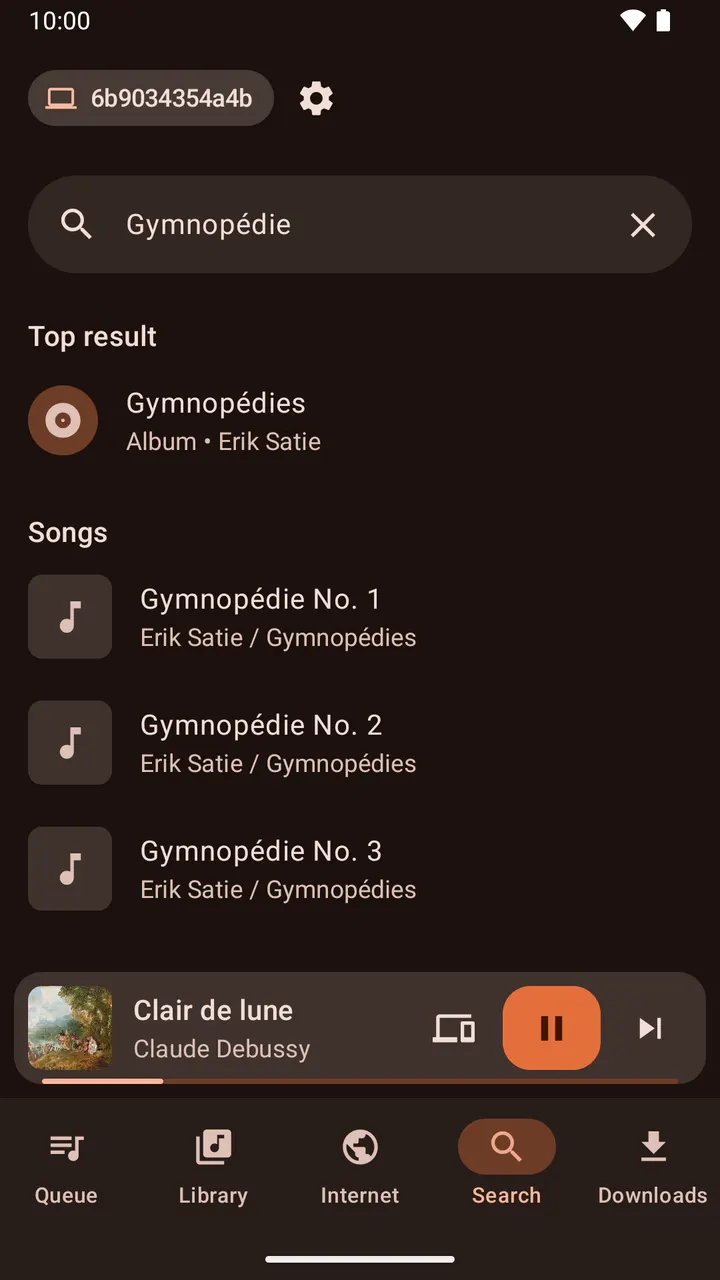
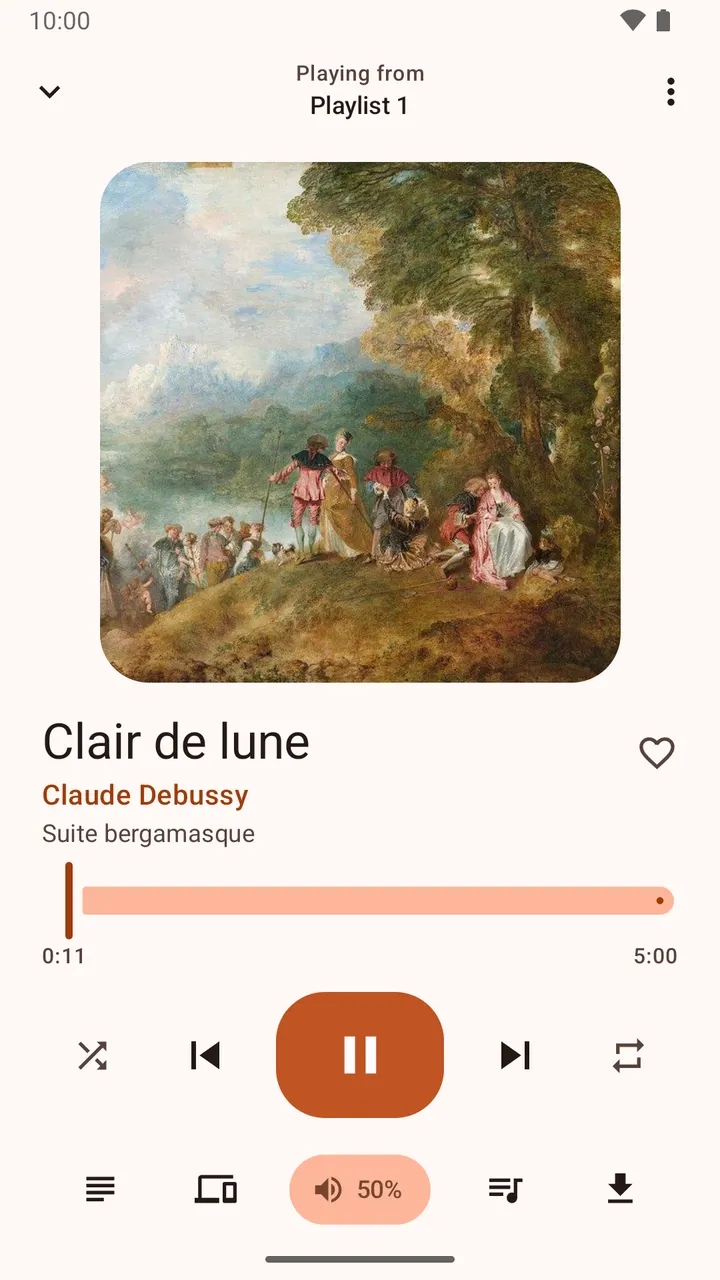
You are across the room, music playing from a computer, and you want to skip a track without getting up. Clementine Remote turns an Android phone into a controller for the Clementine desktop player. It is free, has no ads, and the file is only 4.1 MB.
Controlling a desktop player from the couch
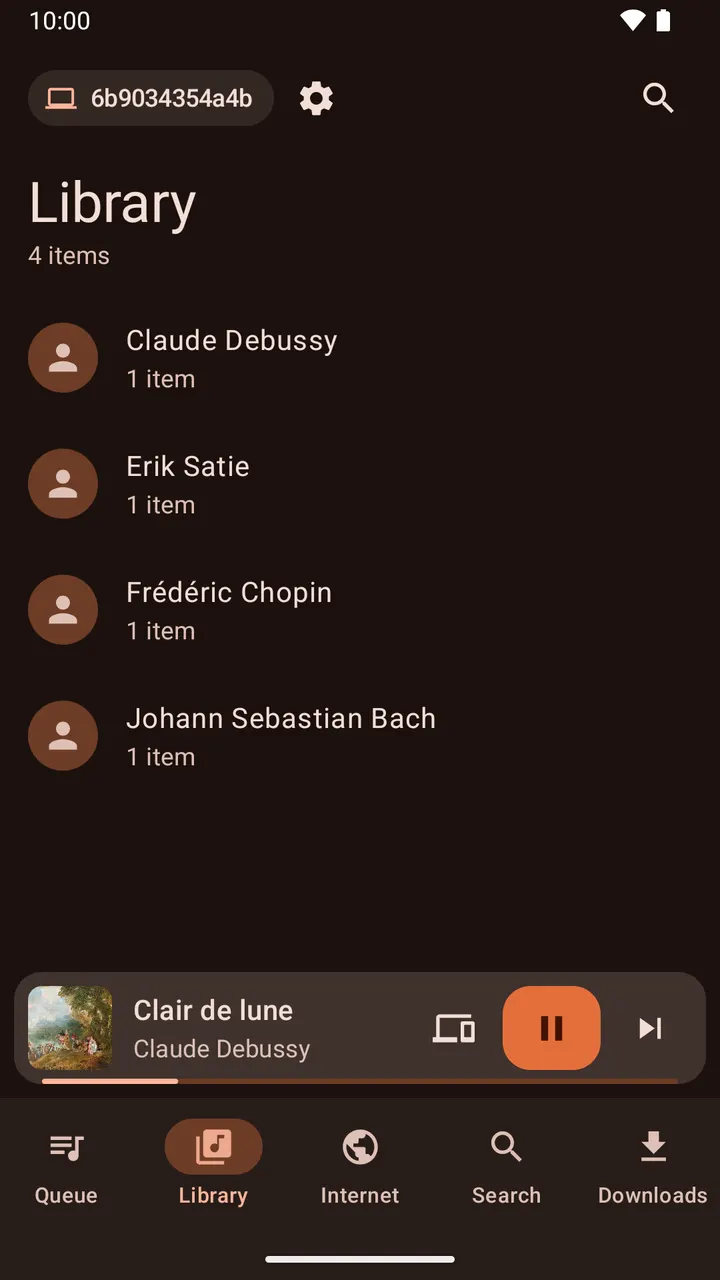
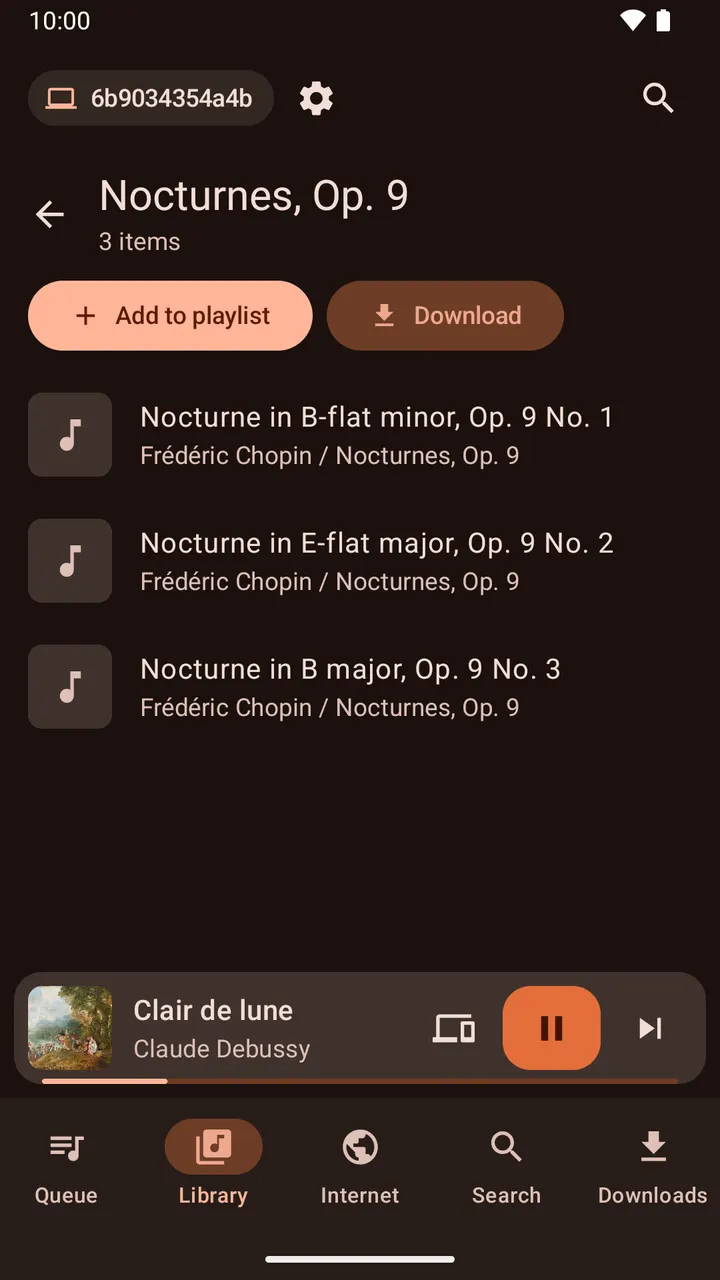
The app addresses a simple gap: Clementine runs on a computer, and the controls sit on that computer. The remote gives you access to playlists and the music library from the phone. You can also change the volume with the hardware buttons.
It shows lyrics and cover art on screen while a song plays. It also supports exchange of music and playlists with a computer, including downloading files.
Phone calls lower the volume automatically
One detail is practical. When a call comes in or you place one, the app lowers the volume, so you do not have to pause the track yourself. The core feature is music player remote control, and the rest builds on it.
Check the Clementine version and settings first
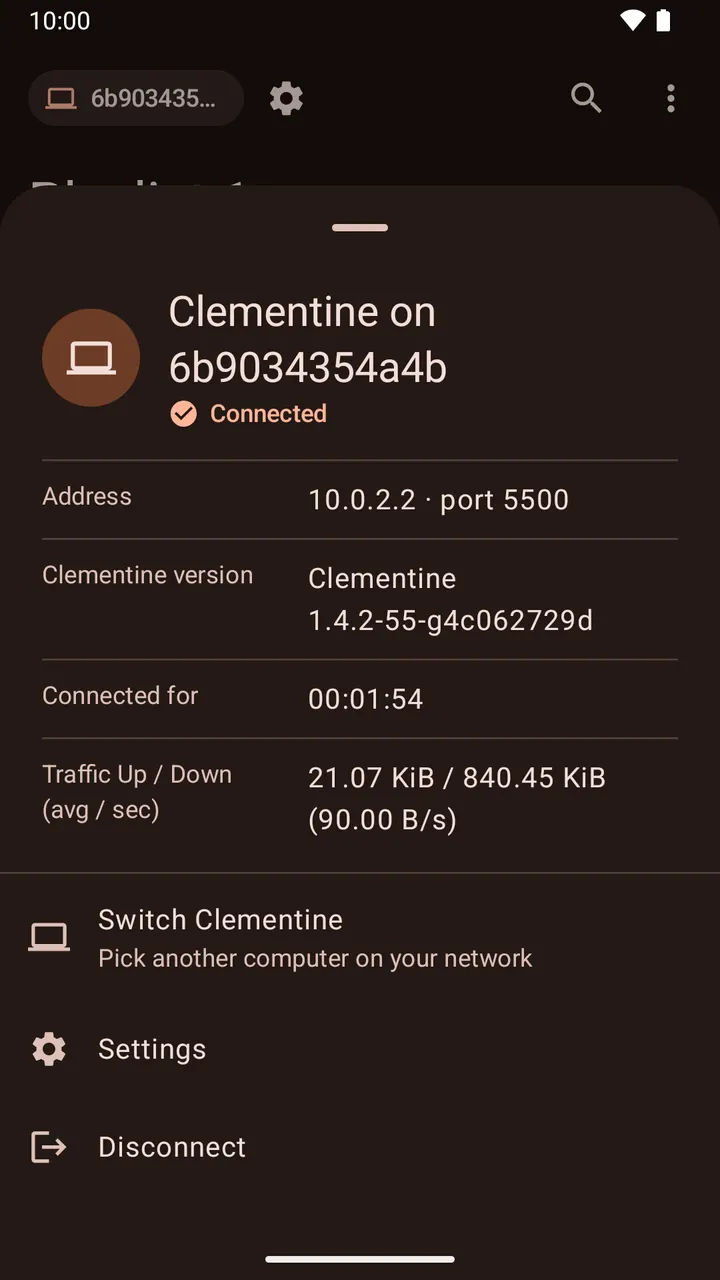
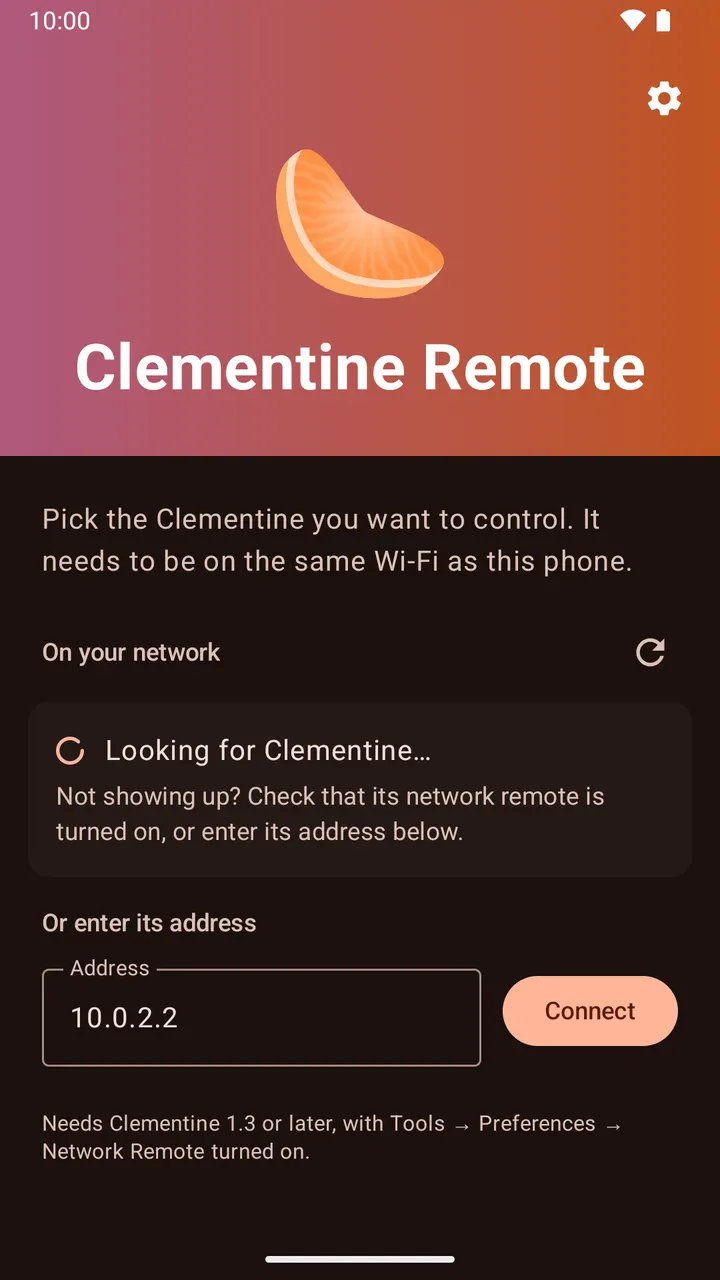
The app does not work alone. You need Clementine 1.3 on the computer and must switch on remote control in its settings. It also requires Android 6.0 or newer.
This build is version 13.10, updated October 29, 2026. The project first appeared on December 11, 2013. Source code is on GitHub under GPL-3.0-only.
Clementine Remote pros and cons
Pros
- Free, with no ads
- Small download of 4.1 MB
- Open source under GPL-3.0-only, with code on GitHub
- Lowers volume during phone calls
- Works with Android 6.0 and newer
Cons
- Needs Clementine 1.3 on a computer with remote control enabled
- Developer is listed as unknown
- Updates arrive without published release notes
Is Clementine Remote safe?
We host the unmodified APK, and the SHA-256 checksum is 73931e4caa9549680288bf03891621da64339b94509ab8e869dba6e0b076893e. The app is open source under GPL-3.0-only, so its code can be inspected on GitHub. No independent security review is available.
How to install Clementine Remote
- Download the APK with the button on this page and wait for it to finish.
- Compare the file with the SHA-256 checksum shown here if you want to confirm it arrived intact.
- Open the file on your phone and allow installs from this source when Android asks.
- Finish the install, then open Clementine Remote from your app drawer.